
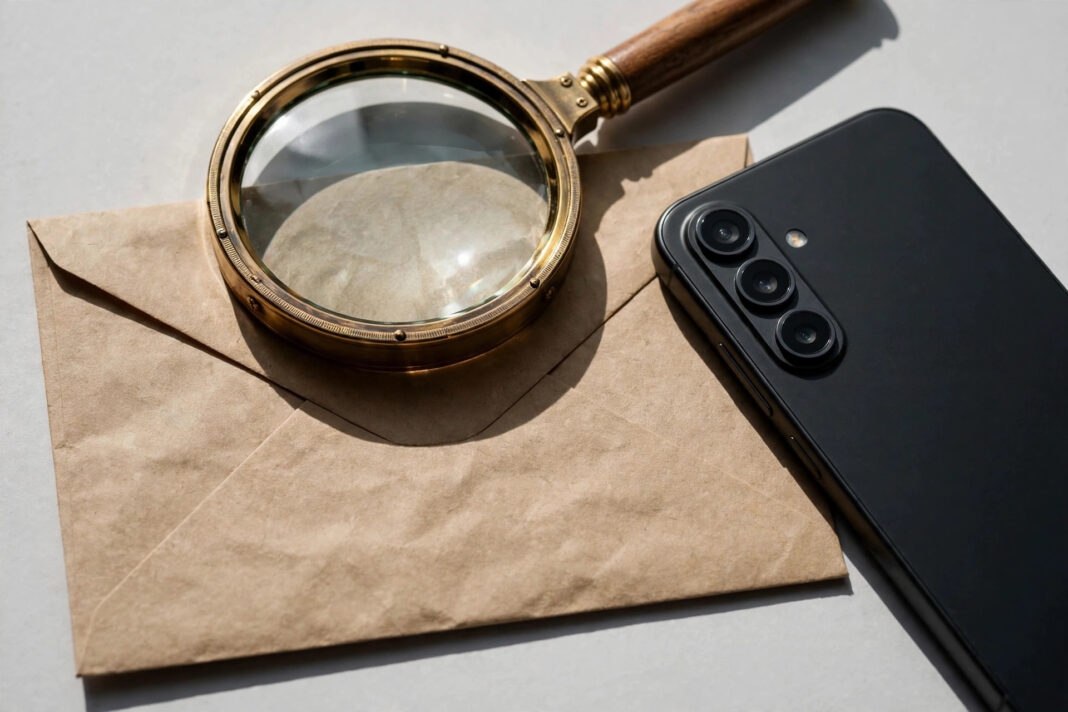

Open an email from a shop, a newsletter, or a company you once signed up with. You do not click anything. You do not reply. You close it and move on. The sender still knows you opened it. They know when you opened it, how many times you opened it, what kind of phone or computer you used, and roughly where you were when you opened it.
Nothing on the screen tells you this happened. There is no warning, no pop up, and no sign that the email did anything at all. The tracking is done by a single invisible image, hidden inside the email, so small and so transparent that no human eye can see it. It is called a tracking pixel, and it is in most marketing emails you receive.
This guide explains how it works in simple words, what it can and cannot tell a sender about you, what your email app already does to limit it, and the settings that stop it. None of the steps cost money, and none of them takes more than a few minutes.
What Is Actually Happening
An email is a small web page, delivered to your inbox. Like a web page, it can contain images that are not stored inside the email itself. They live on someone else’s server, and your email app downloads them when you open the message.
A tracking pixel uses that normal process. It is a tiny image, usually one pixel by one pixel, transparent, placed inside the email. Its web address is unique to you. When you open the email, your email app downloads all the images in it, including the pixel. Your app sends a request to the sender’s server to fetch that image, and the server writes down what it learns from that request.
That request carries more than the image. It carries the time you opened the email, how many times the image was requested, your IP address, which gives a rough location, and details about your device and your email app. The sender’s server logs all of it. The sender now has an entry in their records: this person opened this email, at this time, on this device, from this place. That is the whole trick. One invisible image, one silent request, and the sender knows you read their message.
This is not the same as a virus, and it is not the same as hacking. A tracking pixel cannot read your other emails, cannot see your password, and cannot take money from your account. It is a marketing tool, used by shops, newsletters, and companies that send bulk email, to measure which emails get opened and which ones get ignored. The problem is not that it is a crime. The problem is that it happens without asking you, and most people have never heard of it.
Why This Is Different
Most online tracking is easy to see, or at least easy to suspect. A cookie banner asks you to accept it. An app asks for your location. A website shows you adverts for a product you looked at yesterday.
Email tracking is different because it is silent. There is no banner, no permission box, and no visible sign. The email looks exactly the same whether it contains a pixel or not. You cannot tell by looking at it, and you cannot tell by reading it. The only way to know is to look at the hidden code of the email, which almost nobody does.
It is also different because the fix is not a single button. Each email app handles it in its own way, and the settings have different names in different places. Gmail, Apple Mail and Outlook each protect you differently, and none of them stops every kind of tracking. That is why this guide covers each one separately, with the exact setting to change.
There is one more difference worth knowing. Email tracking has become less reliable, because the email apps have started fighting back. Apple Mail now loads images in the background before you open a message, so the sender sees an open that may not be real. Gmail loads images through Google’s own servers, so the sender cannot see your real IP address. The tracking still happens, but the picture it gives the sender is now blurred. That is good news for you, and it is the reason the steps below work better than they did a few years ago.
What Your Email App Already Does
Your email app may already be limiting this tracking, without you knowing it. Here is what each of the three main apps does.
Apple Mail introduced Mail Privacy Protection in 2021. If you turn on Protect Mail Activity, Apple Mail downloads the images in your emails in the background, through Apple’s own servers, even if you never open the message. The sender’s server still gets a request, but it cannot tell whether the request came from you opening the email or from Apple loading it in advance, and it cannot see your real IP address. On an iPhone or iPad, the setting is in Settings, then Apps, then Mail, then Privacy Protection. On a Mac, it is in Mail, then Settings, then Privacy.
Gmail loads external images through Google’s own servers, a system it has used since 2013. The sender still learns when the email is first opened, because Google’s server still has to fetch the image, but the sender cannot see your real IP address or your real location. Gmail also scans images for safety as part of that process. What Gmail does not do, by default, is stop the pixel from loading at all. To stop that, you have to change the Images setting yourself, as explained in the checklist below.
Outlook, on a computer, blocks automatic picture downloads by default. That means a tracking pixel in an email you open in desktop Outlook does not load until you choose to download the pictures. The Outlook apps on Android and iPhone have a similar setting, called Block external images, which you can turn on in the app’s settings.
Who Is at Risk
Everyone who reads marketing emails is tracked this way, which is almost everyone with an email address. But some people should act first.
People who read email on a phone are at higher risk, because a phone’s IP address gives a rough location, and because phone email apps often load images automatically. People who signed up for many newsletters and shop mailing lists are at higher risk, because each list is another sender collecting open data about them. People who open emails from senders they do not know are at higher risk, because a tracking pixel in a scam email tells the scammer that your email address is real and active, and that you open messages. A scammer who knows an address is active will send more scams to it.
There is a limit to the risk, and it is worth stating plainly. A tracking pixel on its own cannot steal your money or your identity. It is a small leak, not a break in. But small leaks add up. The open data from your emails, combined with the tracking cookies on websites and the permissions on your phone apps, builds a picture of your habits that is sold and shared without your knowledge. Closing this one leak is one part of closing the whole picture. Our guide to what happens when you click Accept All cookies explains the website side of the same problem, and our guide to deleting your personal data shows what to do about data that is already out there.
What Ghanaian Law Says
Ghana has no specific rule that names email tracking pixels. What applies is the general law on personal data. The Data Protection Act, 2012 (Act 843) says that personal data must be collected fairly, for a stated purpose, and with the consent of the person it belongs to, unless another lawful reason applies. An email open, with a time, a device, and a rough location, is personal data when it can be linked to you.
That means a sender who tracks your opens without telling you, and without your consent, is on weak ground under Ghanaian law, even though no case has yet tested tracking pixels directly. In Europe, the rules are clearer. The European Data Protection Board has said that tracking pixels fall under the rule that requires consent before storing or reading information on a person’s device, and in 2026 France and Italy started requiring senders to get consent for most tracking pixels, according to a guide published in October 2026. Ghana has not gone that far, so for now the practical protection is in your own settings, not in the law. Turn the tracking off yourself, as the checklist below shows.
Checklist: How to Stop Email Tracking
- Turn off automatic images in Gmail. On a computer, open Gmail, click Settings, then See all settings, then General, then Images, and choose Ask before displaying external images. Then save. The Gmail app has the same Images setting in its account settings. After this, Gmail will ask you before it loads images in an email. You can still load the images in a message you trust, with one tap.
- Turn on Protect Mail Activity in Apple Mail. On an iPhone or iPad, go to Settings, then Apps, then Mail, then Privacy Protection, and turn on Protect Mail Activity. On a Mac, open Mail, then Settings, then Privacy, and turn it on there. This hides your IP address and stops senders knowing when you really opened a message.
- Block external images in Outlook. On a computer, go to File, then Options, then Trust Center, then Trust Center Settings, then Automatic Download, and tick Don’t download pictures automatically. On the Outlook apps for Android and iPhone, turn on Block external images in the app’s settings.
- Do not click Unsubscribe in a spam email. In a real newsletter from a company you know, Unsubscribe is safe. In a spam email from a sender you do not know, clicking Unsubscribe tells the sender your address is real and active, which is the same problem as the tracking pixel. Mark spam as spam instead, and delete it.
- Use an email service that removes trackers if you want stronger protection. Proton Mail, for example, removes known trackers by default. You do not need to change your email address to use the steps above, but a tracker blocking service is an option if you want to go further.
- Remember the limit. Blocking images stops the pixel, but it does not stop tracked links. If you click a link inside an email, the sender can still know you clicked it, because the link itself carries a code that identifies you. The habit that protects you from links is the same one in our five simple moves guide: never click a link in an unexpected message. Go to the real service yourself instead.
Conclusion
You were never asked whether a sender could watch you open their emails. You were never shown the pixel, and never told what it records. Now you know it is there, and you know the settings that stop it.
Turn off automatic images in Gmail, turn on Protect Mail Activity in Apple Mail, or block external images in Outlook. It takes a few minutes, it costs nothing, and it closes a leak you did not know you had. Your emails will still arrive. The pictures in messages from people you trust will still load when you ask for them. The only thing that changes is that a sender you have never met can no longer watch you read their message and write down when, where, and on what device you did it.
That is a small change, but it is your choice to make, not theirs.
Sources
- Privacy Affairs, Email Tracking Pixels: What They Reveal and How to Block Them, published 31 October 2026. Pixel definition, what a pixel reveals, Apple Mail Privacy Protection since 2021, Gmail image proxy, the Gmail, Apple Mail and Outlook settings, and the France and Italy consent note for 2026.
- Safeguard, Email Tracking Pixels Explained. Gmail image proxy since December 2013, Apple Mail Privacy Protection through two relays, desktop Outlook blocking automatic picture downloads by default, and the European Data Protection Board Guidelines 2/2023 on tracking pixels.
- Online Tech Tips, Can Someone Tell When You Have Opened Their Email. Gmail Images setting steps, Apple Mail Protect Mail Activity steps, Outlook Trust Center steps.
- Data Protection Act, 2012 (Act 843), Ghana.
