Between January and July 2026, Ghana’s Cyber Security Authority recorded 3,876 cybersecurity incidents, and about 47 percent were linked to online fraud. The Bank of Ghana’s 2025 Fraud Report tells a similar story. Fraud cases rose by 48 percent in one year, from 16,733 in 2024 to 24,778 in 2025, and more than 97 percent went through payment service providers.
Most of that fraud starts with an ordinary phone, and five settings close those gaps.
What Is Actually Happening
For many people in Ghana, a phone is a wallet, a bank branch, and a photo album. Mobile money, known as MoMo, lets you send and receive money, pay traders, and save. Your email can reset the password of almost every other account you own.
That is why a phone is such a useful target. A thief who gets into your phone can reach your MoMo wallet and move money before you know it is gone. For the wider picture, read How Mobile Money Fraud Actually Works in Ghana, and How to Not Be the Next Victim.
Why This Is Different
Phone safety advice often sounds like a list of things to buy or fear, and it does not fit daily life in Ghana, where people share phones with family and use mobile money at the market.
These five settings are different. They are already on your phone, and they work quietly in the background once they are on. Each one protects something specific: your logins, your apps, a lost phone, what apps can see, and what your lock screen shows.
Who Is At Risk, and Who This Is For
This article is for every phone owner, but a few groups should pay special attention. The first is anyone who uses mobile money every day, which is most adults in Ghana. The second is anyone whose email is linked to many accounts. Your email is the key that can open your other accounts.
The third group is young people starting out in technology. Our guide on How to Break Into Tech Without a Computer Science Degree shows how much of that journey happens on a phone. The fourth group is anyone who has ever lost a phone.
1. Two-Factor Authentication, the Second Lock on Your Accounts
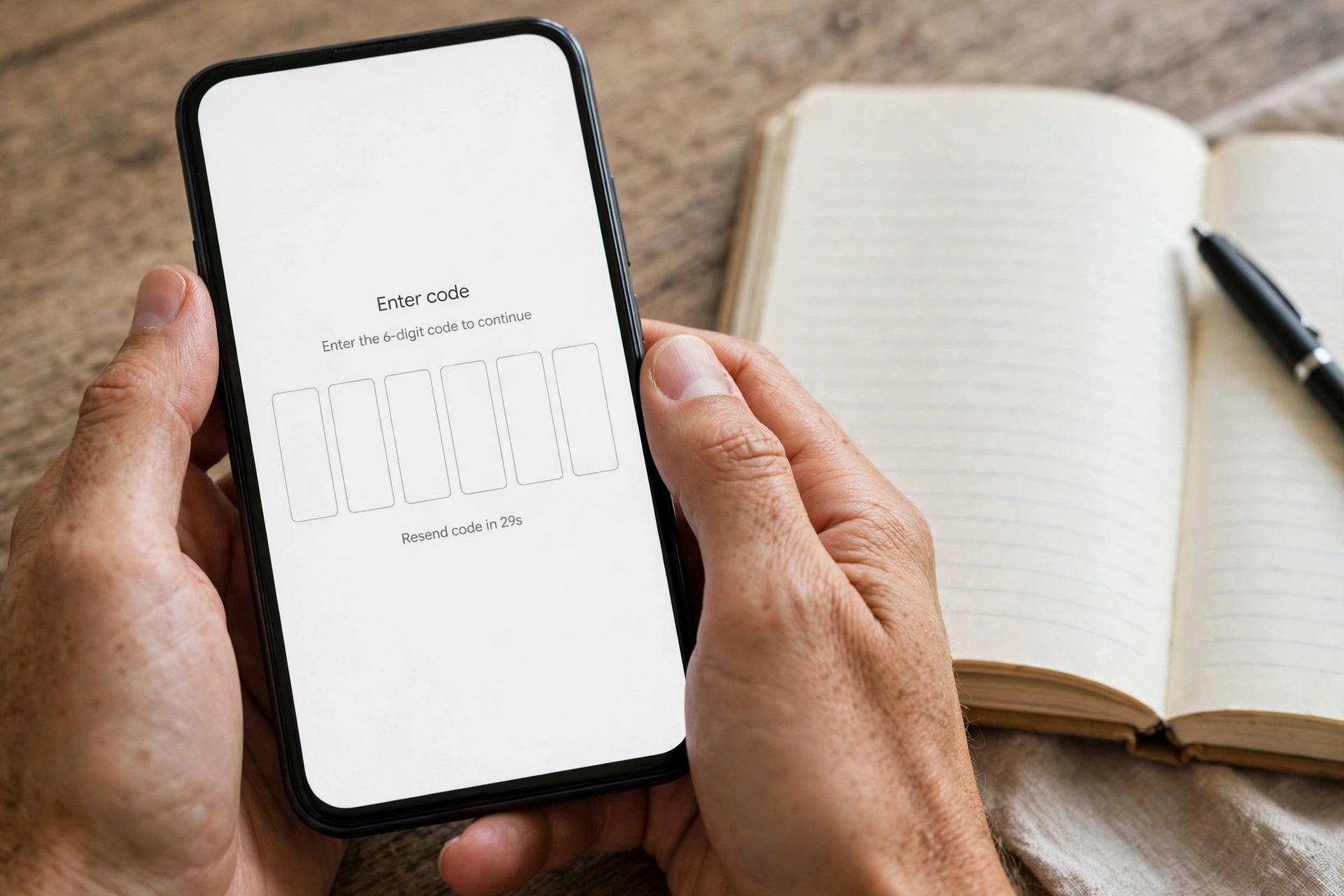
Two-factor authentication, often shortened to 2FA, is the most useful setting on this list, and the one most people skip. Signing in should need two proofs: your password, and a code from an authenticator app. An authenticator app makes a new code every 30 seconds.
That second step matters because passwords alone are weak. People reuse the same password on many sites, or have passwords leaked in a breach, when attackers steal a large list of usernames and passwords from a company. With 2FA on, a stolen password is almost useless alone, because the attacker would also need your phone.
Microsoft reported in 2019 that two-factor authentication blocks 99.9 percent of automated account attacks. Google’s research found on-device prompts blocked 100 percent of automated bot attacks and 99 percent of bulk phishing. Phishing is when a fraudster sends a fake message to trick you into giving away your password.
Start with your email, mobile money app, bank app, and social media, because those unlock everything else. Look for security, then two-step verification or two-factor authentication, and follow the steps. Keep your backup codes, one-time codes given when you set up 2FA, in a safe place at home, not on your phone. Avast explains the three types of proof behind 2FA in its guide to how two-factor authentication works.
2. Automatic App Updates, the Fixes That Arrive While You Sleep
Automatic app updates sound like a convenience feature, but their real value is security. Most updates are patches, small fixes for weaknesses already found in the app. The gap between a fix being released and a user installing it is exactly the window attackers look for.
Switching on automatic updates means fixes arrive as soon as they are released, often overnight while the phone is charging and on Wi-Fi. On an iPhone, check the switch under Settings, then Apps, then App Store, then App Updates. On Android, open the Play Store, tap your profile picture, then Settings, then Network preferences, then Auto-update apps, and choose Wi-Fi only.
Updates use data, so if your bundle is small, choose Wi-Fi only. Apple sets out the steps for how to manually update apps from the App Store.
3. Find My Device and Remote Lock, Your Plan for a Lost Phone
Every major phone can find, lock, or erase a lost phone from far away, and many people have never switched it on. On iPhone it is called Find My, and on Android it is called Find Hub.
If a phone goes missing, you can see its last known location, make it ring even if it is on silent, lock it, and show a message with a contact number. If recovery looks impossible, you can wipe its data entirely. On Android, check Find Hub is on and that you have a screen lock set. On iPhone, Find My must be turned on before the phone is lost.
This matters because the phone can be replaced, but the accounts on it cannot be replaced so easily. Check it today, while the phone is in your hand. If the phone is stolen, lock it first, then call your network to block the SIM, then change your email and mobile money passwords. Apple explains how to erase a device in Find My on iPhone, and notes that Activation Lock stays on after an erase.
4. App Permissions, the Quiet Gatekeepers of Your Data
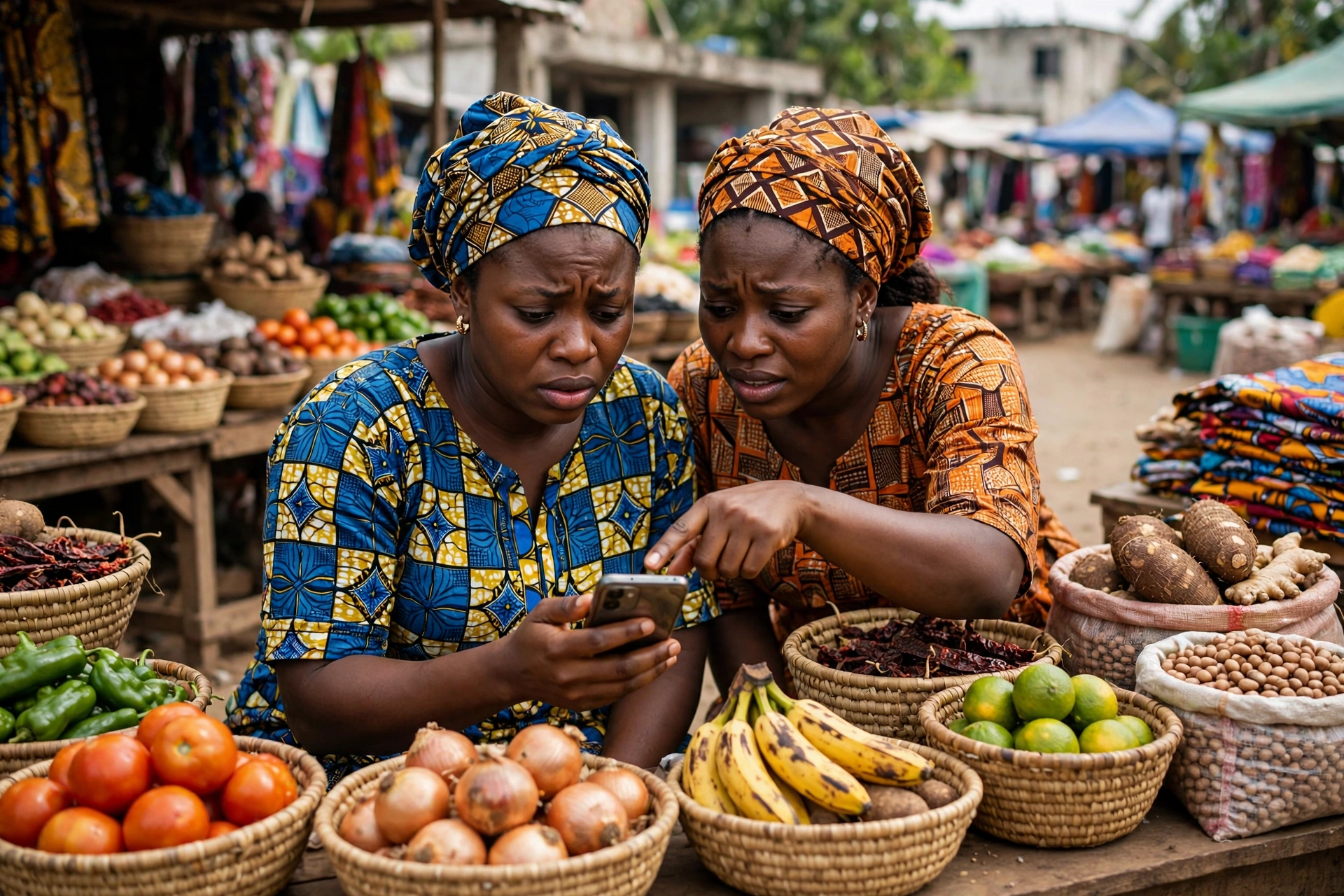
App permissions are the quiet gatekeepers of your personal data. A permission is your answer to the question, can this app use this part of my phone. When you install an app, it may ask for access to your location, camera, microphone, contacts, and files, often all at once and with little explanation of why.
Many apps ask for far more access than they need, and most users accept without reading. A torch app can end up with access to your contacts, and a game can track your location all day. Together, they give an app a detailed picture of your life, which can be shared with companies you have never heard of.
The fix is not to refuse every permission. A map app needs your location, and a camera app needs your camera. Give access only while an app is in use, and revisit the list every few months. On Android, go to Settings, then Apps, then Permissions, and pick Allow only while using the app, Ask every time, or Don’t allow. On iPhone, go to Settings, then Privacy and Security, and review each item app by app. Google explains the choices in its guide to change app permissions on your Android phone.
5. Lock Screen Notifications and Privacy, What Your Phone Shows to Strangers
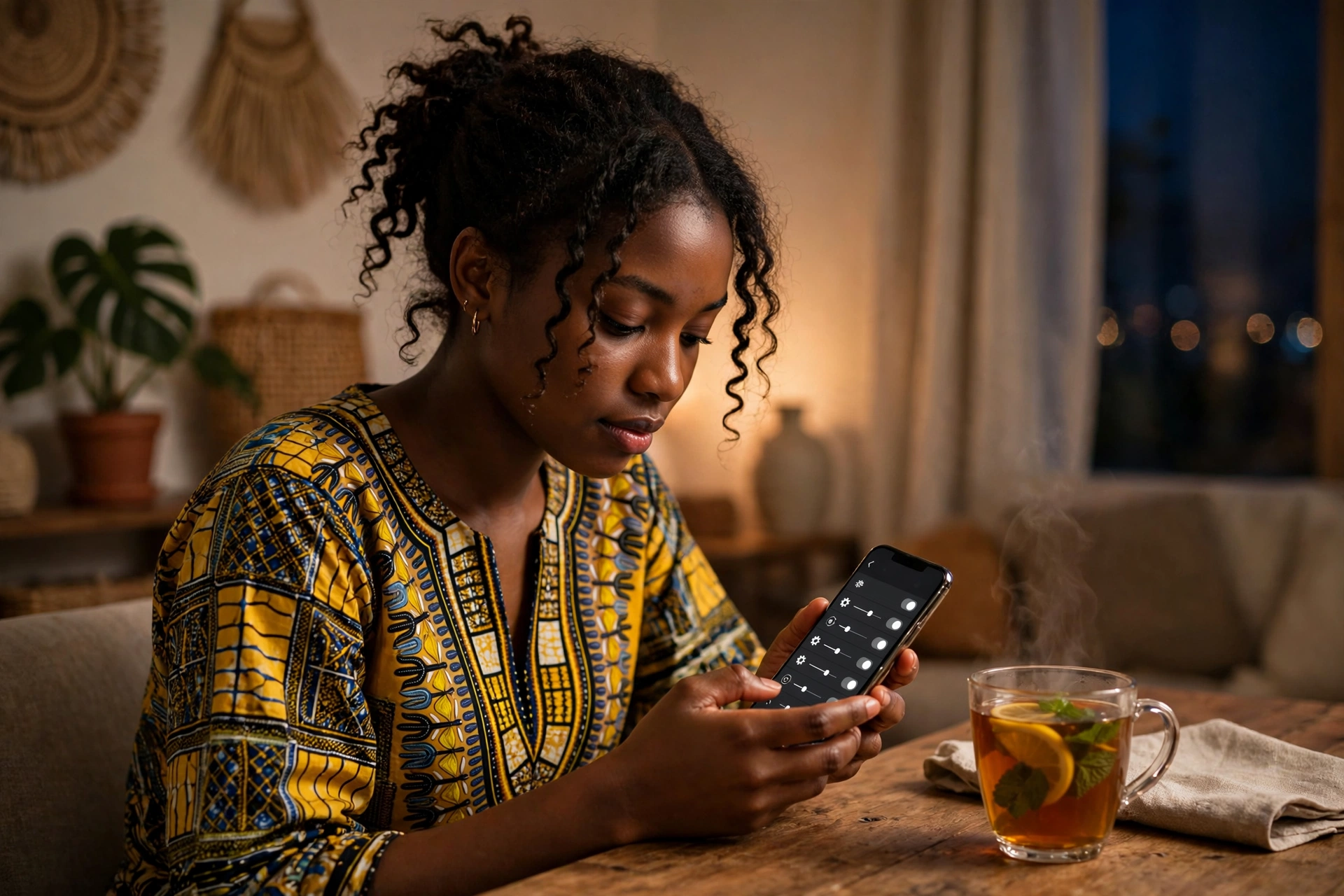
Lock screen notifications are convenient, and they are also one of the easiest ways to leak private information to anyone who glances at your phone. A verification code, a bank alert, a private message, or a two-factor authentication code can all appear on a locked screen.
A MoMo message on your lock screen can show how much money just arrived. A bank alert can show your balance. A code sent to you can be read by someone sitting next to you. You only need to leave your phone face up on a table.
The fix is simple. Most phones let you hide the content of notifications on the lock screen while still showing that one arrived. On iPhone, go to Settings, then Notifications, then Show Previews, and choose When Unlocked. On Android, go to Settings, then Notifications, and choose the option to hide sensitive content.
What Ghanaian Law Says
Ghana has a law that covers much of this article. The Data Protection Act, 2012, known as Act 843, protects personal data by regulating how it is collected, held, used, and shared. Personal data means any information that can identify a person, including your name, phone number, and bank details. The Act set up the Data Protection Commission, which registers organisations that handle personal data and enforces the law. It sets out eight principles for handling data lawfully and securely.
That law mainly binds organisations, not phone owners, but it matters for you. You can ask what data an organisation holds about you, and complain to the Commission if it is misused. Your settings are the part you control directly.
If you are a victim of fraud, report it to the Cyber Security Authority on 292, on WhatsApp 0501603111, or by email to report@csa.gov.gh.
What To Actually Do: A Protection Checklist
Work through this list once, in order.
- Turn on two-factor authentication for your email, mobile money app, bank app, and social media. Store backup codes safely at home.
- Turn on automatic app updates, set to Wi-Fi only if your bundle is small.
- Check that Find My, or Find Hub on Android, is switched on, with a screen lock set.
- Change location, camera, microphone, and contacts to Allow only while using the app for apps that do not clearly need them.
- Hide notification content on your lock screen, so a preview never shows a code or a balance.
- Set a strong screen lock, and never leave your phone unlocked and unattended.
- If your phone is lost or stolen, lock it from far away, block the SIM, change your email and mobile money passwords, and report it on 292.
Conclusion
None of these settings requires technical knowledge. Together, they close the gaps attackers rely on most: weak passwords, unpatched software, lost devices, over-permissioned apps, and information visible to anyone nearby.
Your phone already knows how to protect you. Do the first setting today, and work through the rest this week. The day you need these settings is the day it is too late to turn them on.
Sources Referenced
- Cyber Security Authority, Ghana, figures shared at the launch of National Cyber Security Awareness Month, September 2026, 3,876 incidents from January to July 2026, about 47 percent linked to online fraud, as reported by the Ghana News Agency.
- Bank of Ghana, 2025 Fraud Report, fraud cases up 48 percent, from 16,733 in 2024 to 24,778 in 2025, more than 97 percent through payment service providers.
- Microsoft, on two-factor authentication blocking automated attacks, 99.9 percent in the 2019 study.
- Google, research with New York University and the University of California, San Diego, on account takeover, on-device prompts blocked 100 percent of automated bot attacks and 99 percent of bulk phishing attempts.
- Avast, “How Does Two-Factor Authentication (2FA) Work?”, blog.avast.com/why-use-2fa
- Apple Support, “How to manually update apps from the App Store”, support.apple.com/en-us/102629
- Apple Support, “Erase a device in Find My on iPhone”, support.apple.com/en-au/guide/iphone/iph21a030ae3/18.0/ios/18.0
- Google Support, “Change app permissions on your Android phone”, support.google.com/android/answer/9431959
- Google Support, “Find, secure, or erase a lost Android device”, Find Hub, support.google.com/accounts/answer/6160491?sjid=1875536940849964458-EU
- Data Protection Act, 2012, Act 843, Ghana, which established the Data Protection Commission and sets out eight data protection principles.